Search by what you remember
Use sem:the garden plan with on-device semantic search, then narrow it with type:doc. Exact file names rank first; saved Places keep your projects close.
ASK FINDIT NEW IN 0.3
The answer is in your documents.
Ask a question. Follow the citation.
With AI running on your Mac, the conversation stays there.
Free for Apple silicon · macOS 13+ · No account · v0.3.0
Real app captures · Fictional files · Sample AI answer
This edited tour uses still captures of the real app. The AI answer is scripted and timing is illustrative. Compare, Calculate, and Check are computed by Findit without an AI model.
Local conversations use Apple Intelligence on macOS 26+, or a model server running on your Mac such as Ollama or LM Studio. See AI options. Questions and document passages stay on this Mac. No cloud API key needed.
NEW IN FINDIT 0.3
Start with one folder. Add more when you need them.
Your index, your documents, your Mac.
Use sem:the garden plan with on-device semantic search, then narrow it with type:doc. Exact file names rank first; saved Places keep your projects close.
Select a file and press ⌘J. Read the passage behind a citation, ask a follow-up, or check a number. Local AI needs Apple Intelligence on macOS 26+ or a model server running on your Mac.
Preview tables and archives, convert units, split amounts, jump from an error to its source line, and review old downloads. Review commands never delete files.
With a model on this Mac, questions and document context stay on this Mac.
Ask questions offline once your local model is ready. No cloud API key needed.
Follow a citation to the page or line. Keep the source beside the answer.
Ask Findit, photo search, and history work together in one native panel.
Four built-in tools, computed by Findit on your Mac.
“Beach photos from summer 2024.” Search Apple Photos and your folders by date and subject, in your own words.
Subjects are checked on your Mac. Apple Photos access is yours to allow. Example searches shown.
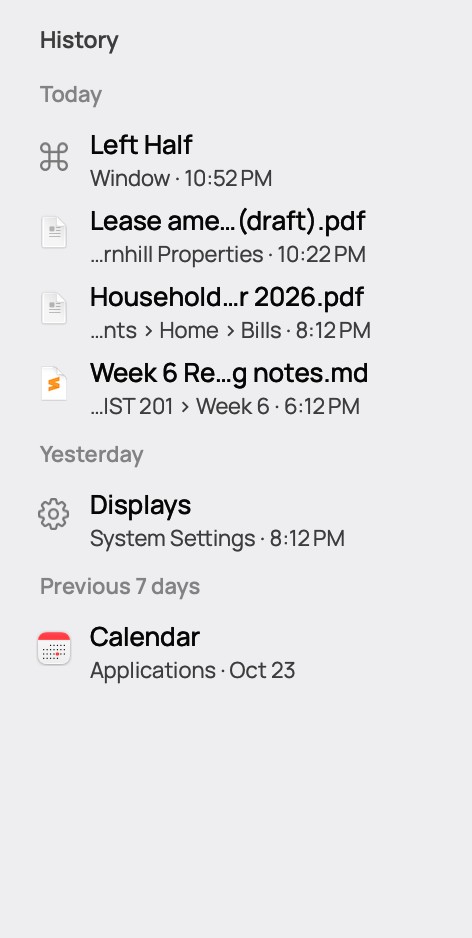
Explore photo searchYesterday’s document. This morning’s notes. Everything you opened through Findit, grouped by day and ready to reopen.
Make a little room for focus.
Pin Findit open while you work.
WHO IT’S FOR / 01
The file is somewhere in a folder you named years ago. The answer is somewhere on page 14. Pick the one that sounds like you.
AS A STUDENT
Your notes are spread across six modules and twelve weeks of folders. You remember “week 6” and “1848”, not the file name. And you’re not sure the draft meets the brief.
hist 201 week 6. Words match in any order, across file and folder names. The Markdown opens in the preview.Also handy: scanned handouts and whiteboard photos are read on your Mac, so you can quote them.
AS A LAWYER
Hundreds of matters, thousands of PDFs, three drafts of every agreement. You remember the client and “lease”. You need the executed copy, and you need clause 3, now.
fernhill lease ext:pdf narrows thousands of files to one matter. Add dm:30d for recent changes or in:~/Matters to stay in one folder.Confidential material stays put: the index, previews and comparisons run on your Mac. Answers use Apple’s on-device model, or a model server running on your Mac.
IN THE OFFICE
You need last quarter’s invoice, the latest deck, and the contract someone renamed “final_v2”. Folder hunting won’t make it.
invoice dm:3m ext:pdf, deck dm:7d, tag:client size:>1mb. Combine words and filters freely.Also: tag files with real Finder tags (⌘T), arrange windows by typing “left half”, keep reusable text as snippets.
AS A RESEARCHER OR WRITER
Years of notes, papers and drafts. You remember the idea, not the words, and definitely not the file name.
sem:why the uprisings failed finds notes about the idea. Or content:"exact phrase" for the words themselves.Content and meaning search cover text, Markdown, CSV, JSON, HTML and code files, plus PDF text layers through the helper (up to 500 pages and 2 MiB, without OCR). PDFs and Office files are found by name and previewed; ask about PDFs in Ask Findit.
AT HOME
Bills, receipts, tax returns and warranty cards, saved as PDFs and phone photos. You want a total, a split, and proof.
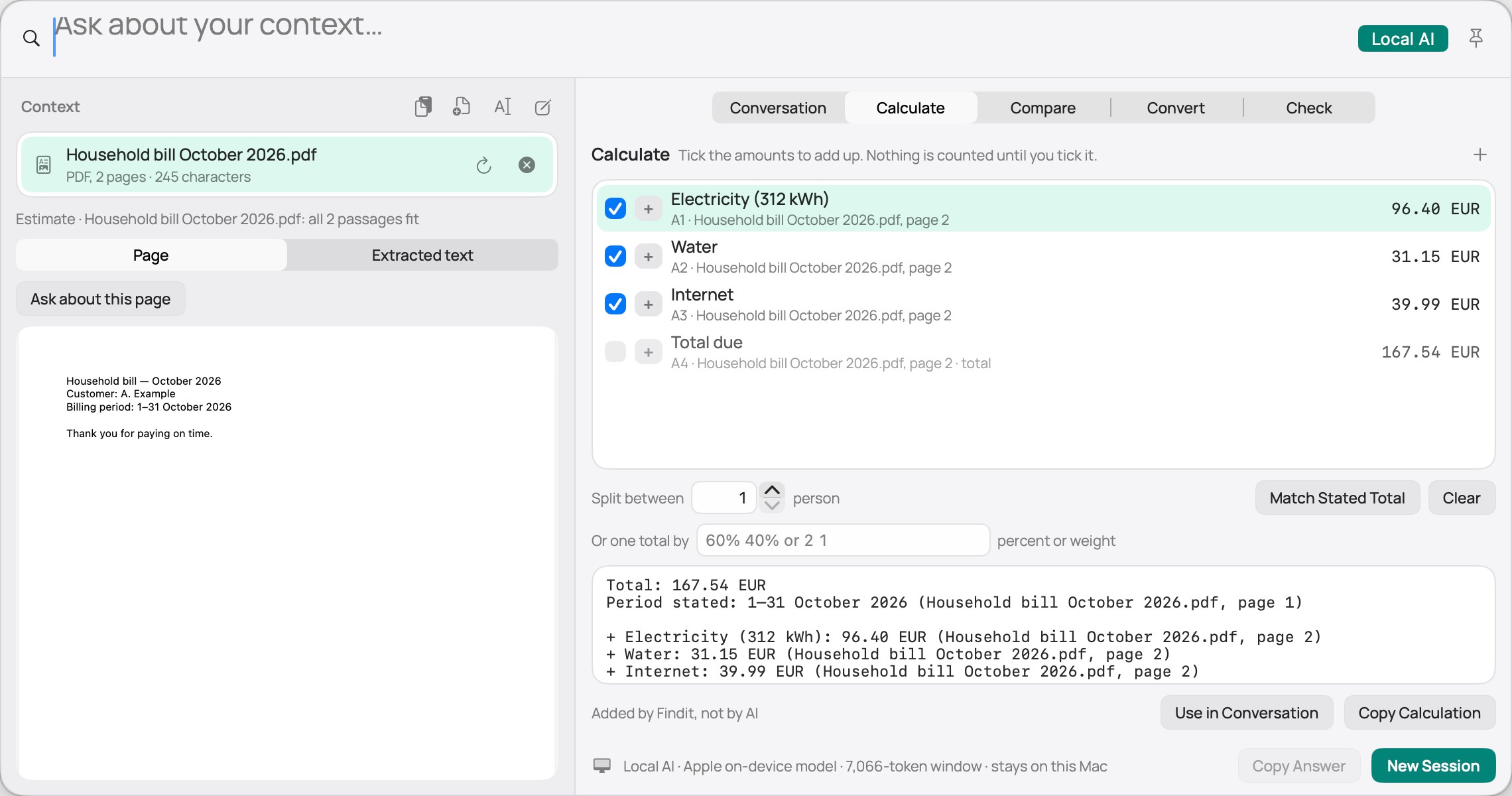
electricity bill dm:1y or tax return. Tag paperwork once, find it forever with tag:tax.Calculate is Findit’s own exact arithmetic. No AI model is asked, and currencies are never mixed.
AS A DEVELOPER
Ten projects, a hundred config files with the same name, and a JWT someone pasted in chat.
repo:. config ext:json, then ⌘↩ opens the file in the VS Code, Cursor or Xcode window for its project.Plus a findit CLI, findit:// links, glob and regex filters, “why ranked” (⌘I), and your own local plugins.
TRY
glob:*.swift dm:7dre:invoice-\d{4} ext:jsonrepo:. kind:dir testfindit --json "auth service"AS A TEACHER
Worksheets from three schools, five syllabus versions, and a stack of submissions to check against the brief.
year 9 photosynthesis worksheet finds it wherever it ended up. Filter with tag: or dm:.Reuse feedback with snippets: type snip and a name. Snippets can include today’s date.
FOR YOUR PHOTOS
Twenty thousand photos in Apple Photos and a few old folders. You remember the occasion and roughly when.
Apple Photos access is asked for, never assumed. Photos never leave your Mac, including to a remote AI service. Archive drives stay searchable while unplugged if you opt in.
TRY
photos birthday 2025photos snow last winterphotos screenshots this monthis:offline on:Archive ext:nef,cr3Also built for keyboard and VoiceOver users (every action has a key, results and outcomes are announced) and job seekers (check a cover letter against the advert’s limits and closing date).
A SMALL MEMORY IS ENOUGH / 02
Words in any order. A filter when you need one.
A preview to tell you you’ve found it.
TRY A SEARCH
Remember the client and “lease”? That’s enough.
A browser illustration with six fictional files. It runs on this page only: no network requests, no file access, nothing stored.
EVERYTHING IN ONE PANEL / 03
One native panel over whatever you’re doing. Esc, and you’re back where you were.
Names and paths, any word order, forgiving of case, accents and punctuation. Its own index, so new files show up in moments. Add filters when you know more.
budget ext:pdf dm:7din:~/Clients tag:signedcontract size:>1mb !draftPDFs, Office documents, images, audio, video, Markdown and highlighted code, right beside the results. Edit text and code in place.
 Space for Quick Look · ⌘E to edit · ⌘S to save
Open, open with, copy paths, tag, drag out, move to Trash with undo. Open code in the editor window for its project.
↩ Open
⌘O Open with
⌘T Finder tags
⌘C Copy path
⌘⌫ Trash · ⌘Z undo
Everything you opened through Findit (files, apps, settings, photos, commands), grouped by day. Click to reopen; ⌘\ shows and focuses it.
The pushpin or ⌘⇧P keeps Findit on screen while you work in other apps and open results.
“Snow photos from last winter” searches Apple Photos and your folders by date and subject, checked on your Mac.
Open apps and System Settings panes, do arithmetic as you type, arrange and switch windows, run system actions.
NEW · ASK FINDIT / 04
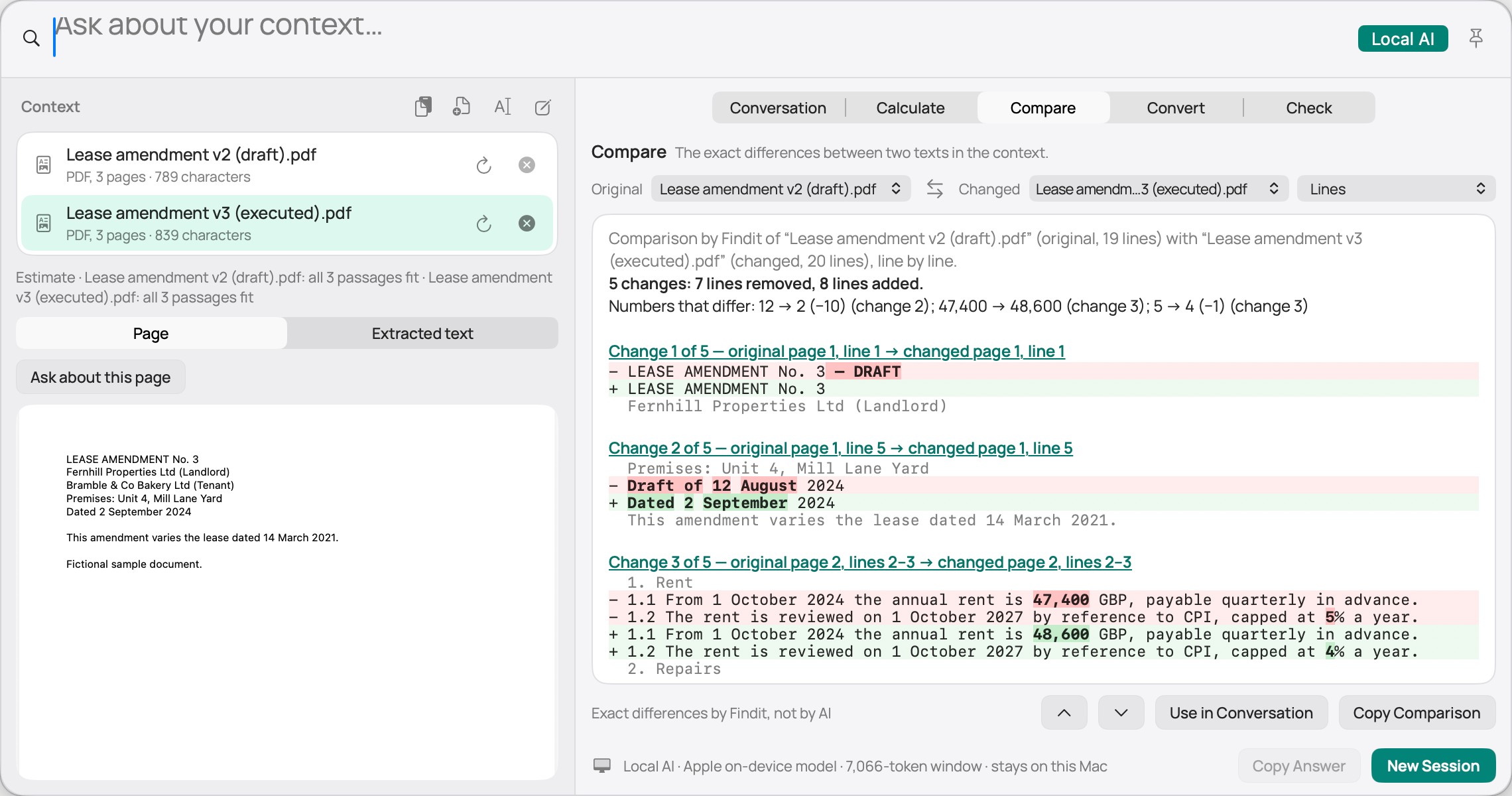
Press ⌘J on a file, or add a PDF, text, the clipboard or a screenshot. Answers cite the line or page, and Findit shows you exactly where.
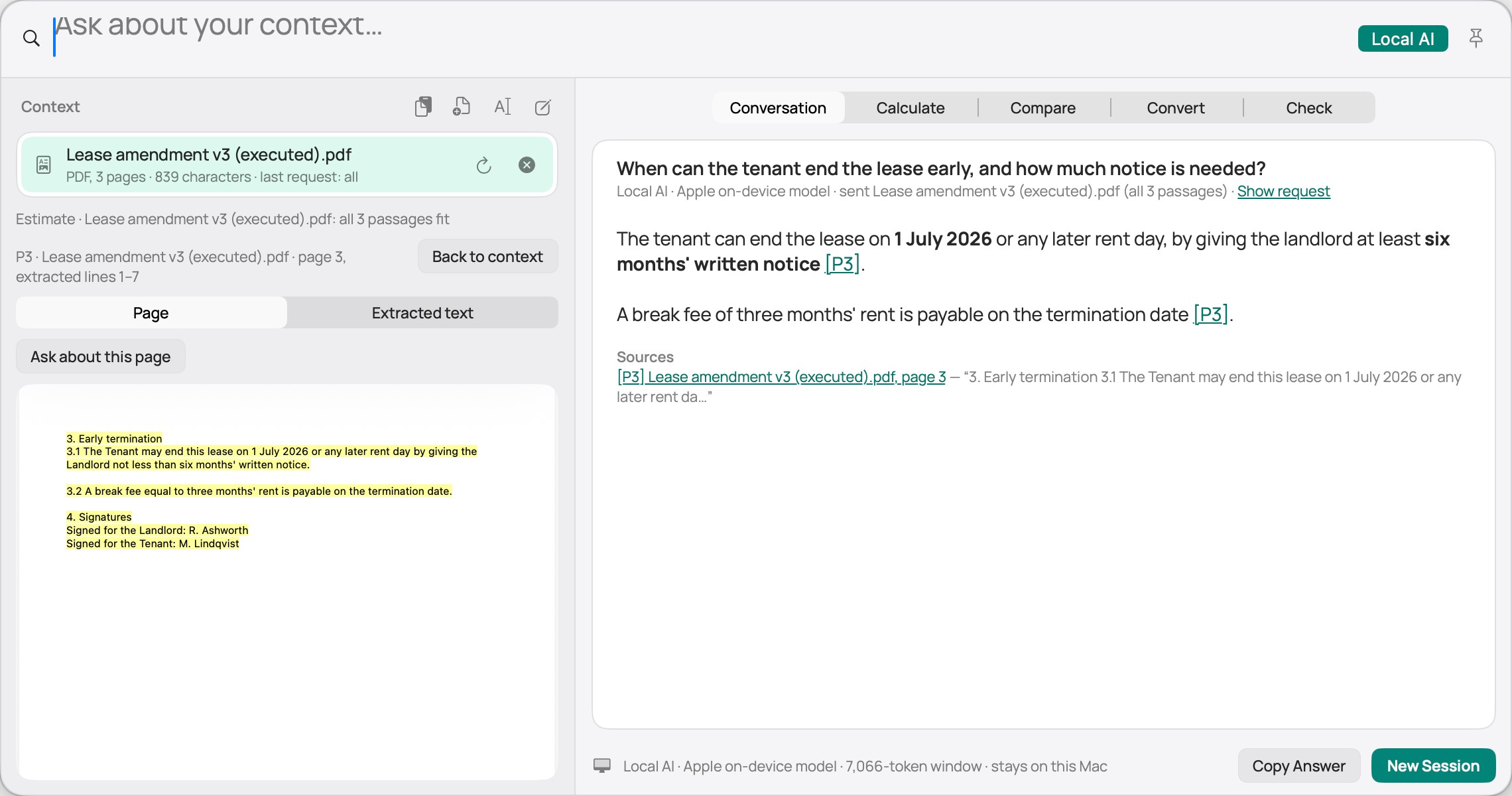
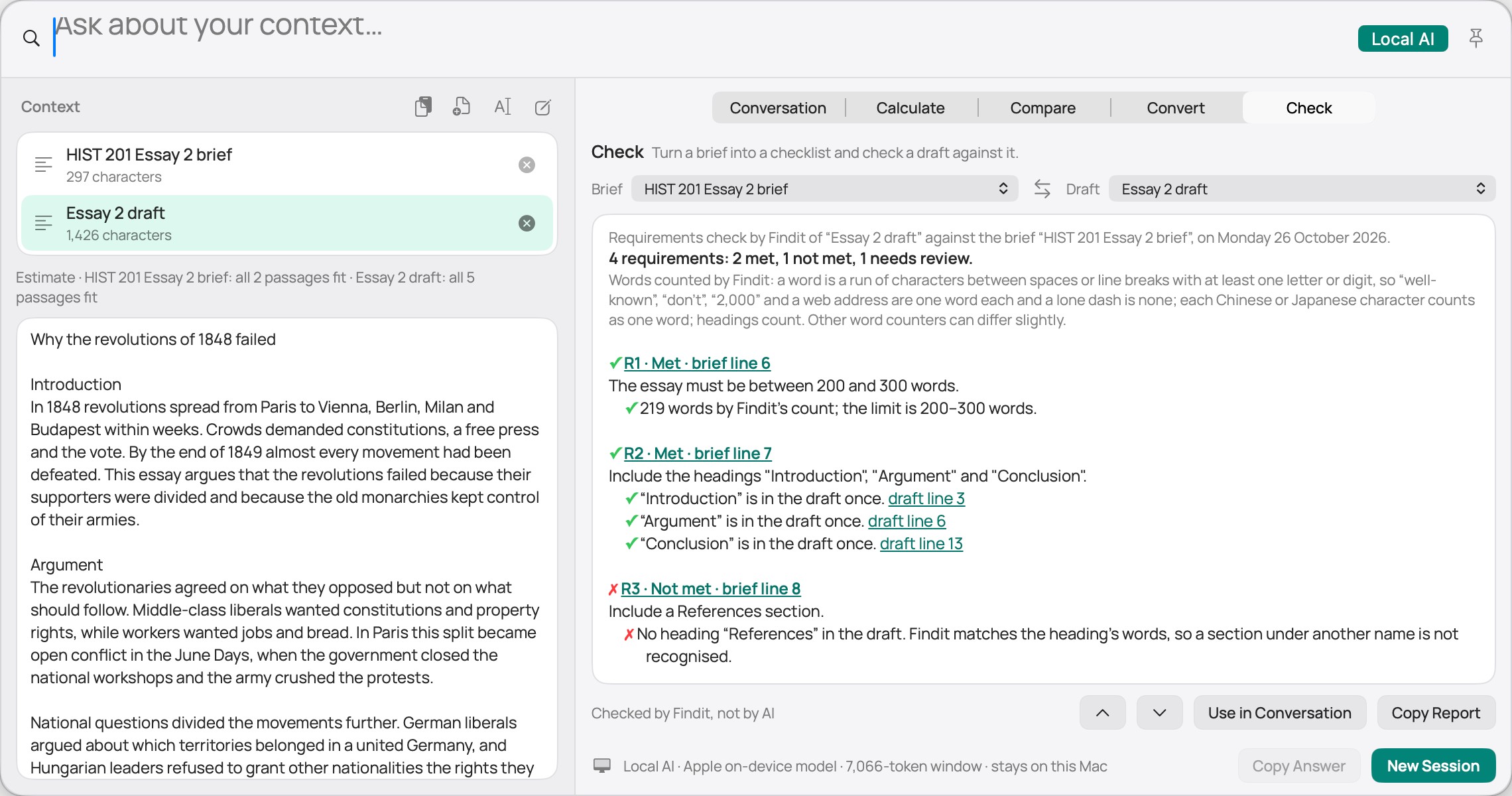
Local AI uses Apple’s on-device model (macOS 26 with Apple Intelligence) or a model server you run, such as Ollama or LM Studio. Model servers must run on this Mac; remote model endpoints are refused.
Open a citation beside the answer. Findit flags numbers and quotes missing from the cited passage. AI can still make mistakes; read the passage before relying on it.
Calculate, Compare, Check and Convert (⌘4: JSON, CSV, Base64, JWT, timestamps) are Findit’s own code. Same input, same result.
GO A LITTLE DEEPER
Every capability below ships today. Optional features stay off until you turn them on.
Turn on content indexing for content:budget and jump to matching lines. Turn on on-device semantic search for sem:the garden plan. Text indexing reads a prefix of up to 2 MiB per file, including larger text files. The PDF helper reads a text layer from up to 500 pages and 2 MiB, without OCR. Semantic search uses on-device chunks; PDF search snippets are not yet available.
Ask Findit reads PDFs page by page (up to 500 pages) and cites the page. Pages without a text layer and images are read with Apple’s text recognition on your Mac (up to 50 scanned pages per document), and recognized text is always marked as such.
Recent use and your active project help rank results. Filter by Git repository, choose a sort order, see “why ranked” with ⌘I, and save named folder scopes such as in:@work. Glob and regex filters are there for precise patterns.
Plain-word questions such as “birthday photos from last year”, or photos mode. Searches Apple Photos (after you allow it) and image folders, newest first, with thumbnails. Subjects are confirmed on your Mac by Apple’s Vision classifier; the status says how many photos were checked.
See iCloud placeholders without downloading them. Keep a searchable list of an opted-in external disk while it’s unplugged; results tell you to reconnect before opening.
Launch apps, jump to System Settings panes, calculate as you type, run system actions, arrange windows (“left half”) or switch windows with win. Window actions need Accessibility permission.
Keep a local clipboard history (clip), pin useful entries, and insert saved text with snip, including today’s date or the clipboard. Stored text stays on your Mac.
A read-only findit CLI with JSON output and shell helpers, the findit:// URL scheme, and optional local plugins that run your own scripts on selected files.
Choose folders, disks and file types. Hidden files are opt-in. Use .finditignore files and exclusions to keep noisy or private folders out. Full Disk Access is optional.
Menu-bar app, configurable global shortcut, light and dark appearance, launch at login, Quick Look, full keyboard navigation, VoiceOver labels and announcements, and Reduce Motion support. No browser wrapper.
Search should help you use your information. It shouldn’t ask you to hand it over.
Findit’s index lives on your Mac. File names, indexed text, searches, history and photos aren’t uploaded anywhere. There’s no account, no telemetry, no cloud sync.
✓ Content indexing, semantic search and clipboard history are opt-in.
✓ Apple Photos is read only after you allow it, and photos never leave your Mac.
✓ Local AI stays on your Mac, with Apple Intelligence or a model server on localhost.
✓ Ask Findit conversations are kept in memory and gone when you quit.
Findit can check for updates automatically. Other network activity comes from features you choose: web search, model downloads, opening cloud files, and enabled plugins.
A SMALL TOOL. A LOT MORE MOMENTUM.
Free · Apple silicon · macOS 13 Ventura or later
Version 0.3.0 · Signed and notarized · SHA-256 checksum
Already installed? Choose Check for Updates in the menu bar.
WHAT’S NEW IN 0.3
Open the DMG, copy Findit to Applications, and launch it once. It lives in the menu bar.
Choose a project folder or try the sample files. Add other folders, disks and file types in Settings when you need them.
Type a few words. ↩ opens, ⌘J asks, Esc takes you back.
GOOD QUESTIONS
Apple silicon Macs running macOS 13 Ventura or later. There is no Intel, Windows, Linux or iOS version.
Findit is free to download and use, with no account. Local AI uses Apple Intelligence or a model you run on your Mac; Findit doesn’t sell or bill AI usage.
Findit finds PDFs, Word and other Office files by name, path, type, date, size and tag, and previews them. Content and meaning search cover text, Markdown, CSV, JSON, HTML and code files, plus PDF text layers through the helper (up to 500 pages and 2 MiB, without OCR). To ask about what’s inside a PDF, add it to Ask Findit; it reads the PDF page by page and cites pages. For Word, Pages or Excel files, export to PDF or paste the text.
No. Search, previews, file actions, photos, Calculate, Compare, Check and Convert work without any model. A model is used only for conversation answers, and only after you choose Local AI.
Apple’s on-device model on macOS 26 or later with Apple Intelligence; a model server you run on your Mac (Ollama, LM Studio, llama-server). Findit doesn’t download or start models for you. Any model can be wrong, so check the cited lines.
No. Findit keeps its own index of names, paths and optional content, updated as files change. The first index needs a little time to finish.
It searches the folders and file types you choose. Start with a project folder of your choice. Add other folders and disks in Settings › Index; source-code extensions are included by default.
It’s optional. Without it, Findit skips protected locations and searches everything macOS lets it read. Accessibility is only needed for window actions; Photos access only for Apple Photos search.
Search, previews, photos, text recognition, Calculate, Compare, Check, Convert and Local AI work without a connection. Updates and web-search rows need a connection. Local models must already be installed.
Findit checks for updates automatically; you can also choose Check for Updates from the menu bar. To remove it, quit, move it to the Trash, and delete the Findit folder in ~/Library/Application Support. See the privacy page.