finditDownload

FINDIT IN YOUR DAY

A few ways to
make it yours.

The file is somewhere in a folder you named years ago. The answer is somewhere on page 14. Pick the one that sounds like you.

AS A STUDENT

It’s 11 pm. The essay is due Friday.

Your notes are spread across six modules and twelve weeks of folders. You remember “week 6” and “1848”, not the file name. And you’re not sure the draft meets the brief.

  1. Find the notes. Type hist 201 week 6. Words match in any order, across file and folder names. The Markdown opens in the preview.
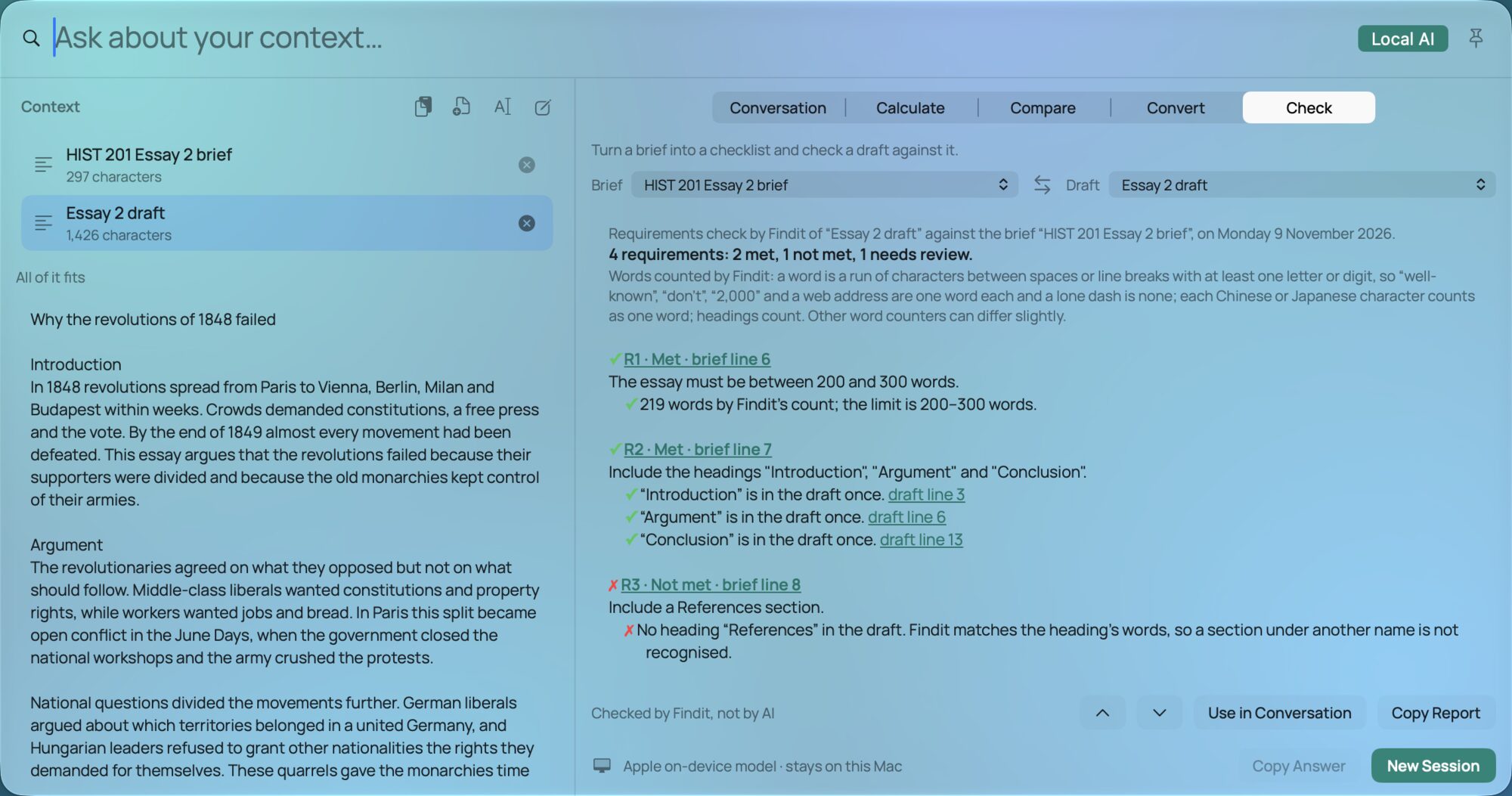
  2. Check the draft against the brief. Add both to Ask Findit with ⌘J, press ⌘5. Word limits, required headings, file type and the due date are marked Met, Not met or Needs review.
  3. Ask the reading. Add a PDF and ask a question. The answer cites the page; click it and the passage is highlighted.

Also handy: scanned handouts and whiteboard photos are read on your Mac, so you can quote them.

Check marking an essay draft against its brief.
Check the brief. Find the reading. Checking an essay draft against its brief: word count and headings met, a missing References section flagged. No model is needed for Check. Real app, fictional files.

AS A LAWYER

The client is on the phone. Which version did they sign?

Hundreds of matters, thousands of PDFs, three drafts of every agreement. You remember the client and “lease”. You need the executed copy, and you need clause 3, now.

  1. Find the document. fernhill lease ext:pdf narrows thousands of files to one matter. Add dm:30d for recent changes or in:~/Matters to stay in one folder.
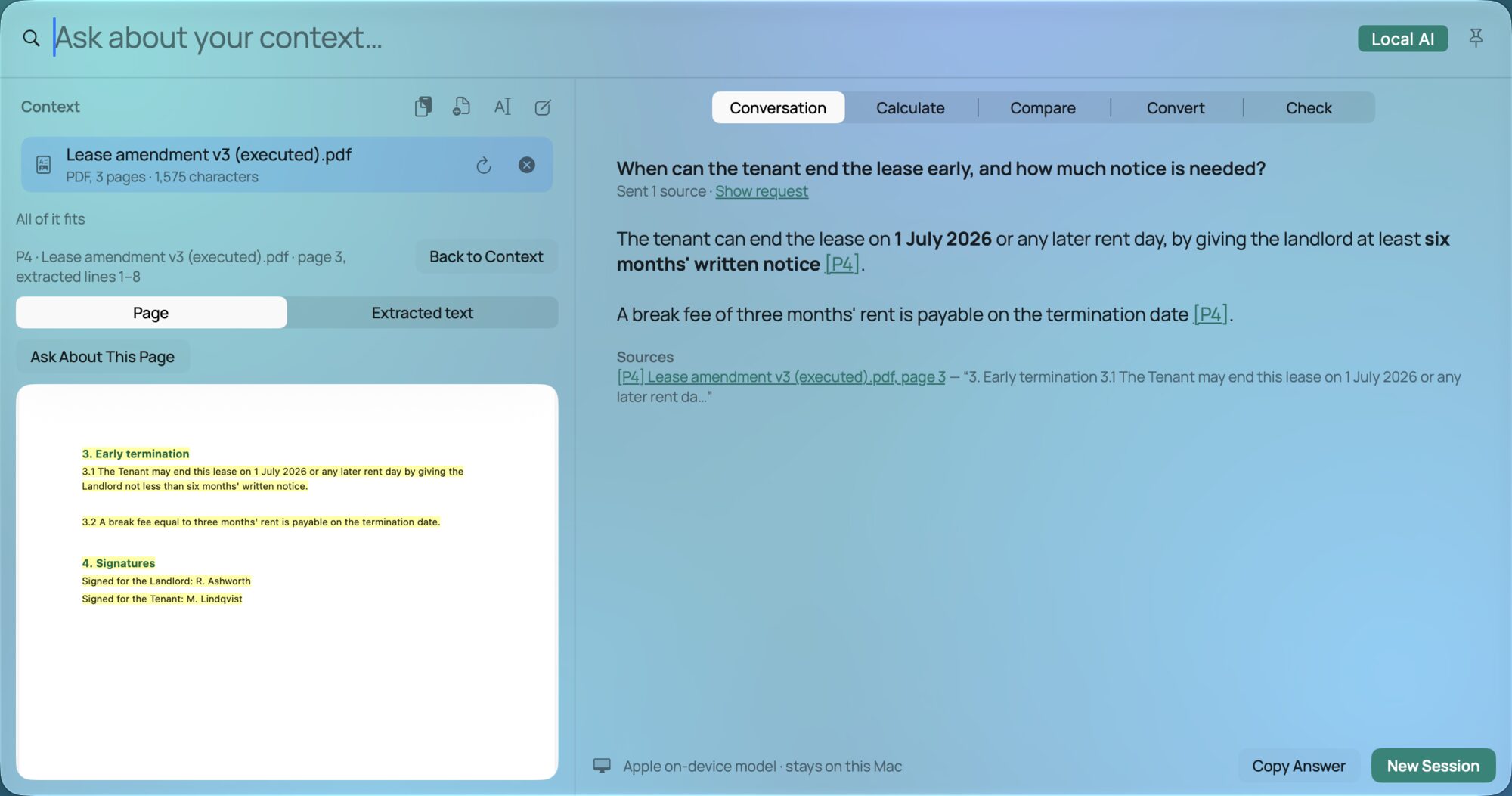
  2. Ask it. ⌘J adds the PDF to Ask Findit. “How much notice does the tenant need to end early?” The answer cites page 3, highlighted in the original.
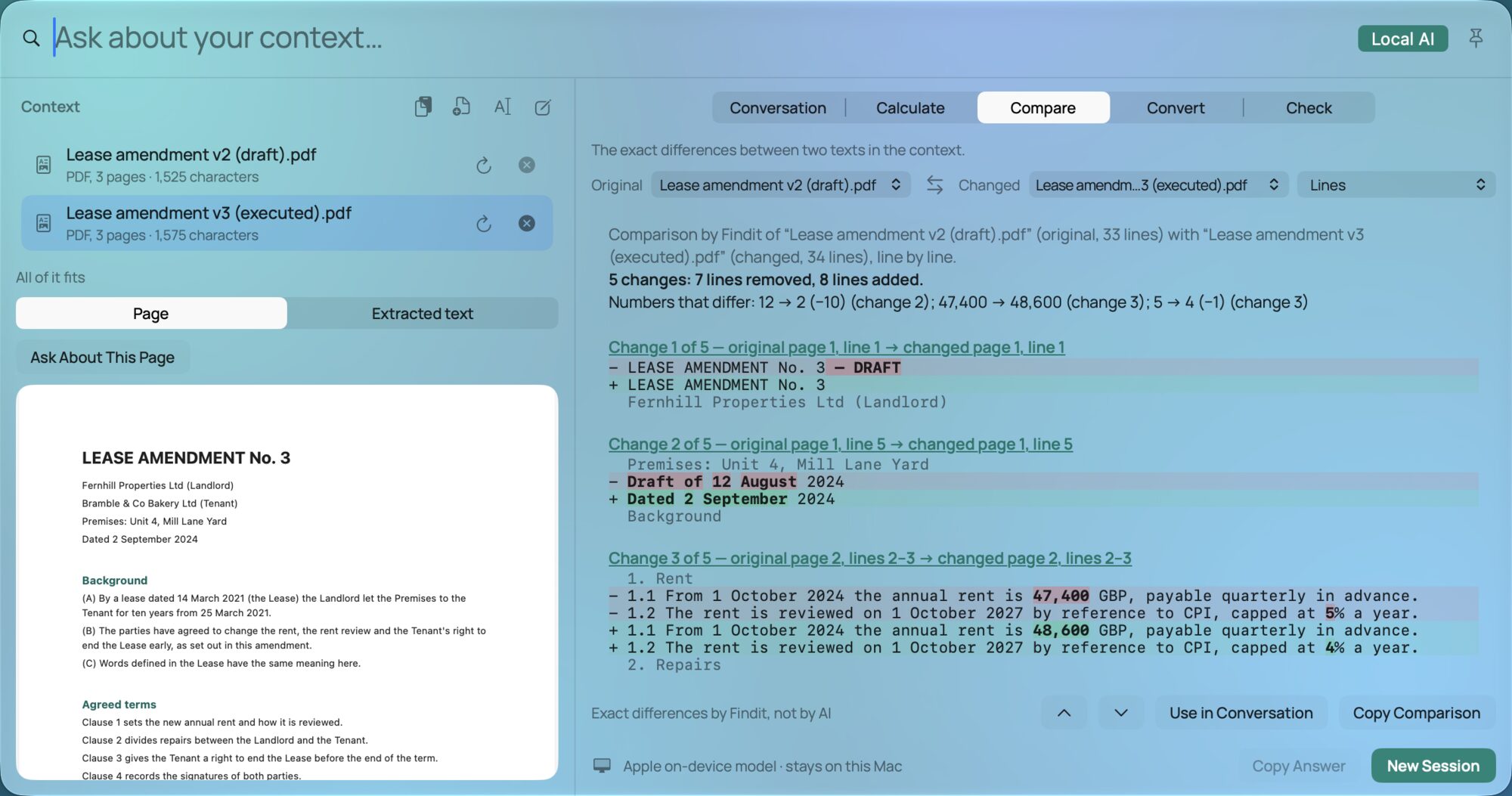
  3. See what changed. Add the draft and the signed copy, press ⌘3: every changed word, with its page in both versions.

Confidential material stays put: the index, previews and comparisons run on your Mac. Answers use Apple’s on-device model or a model server running on your Mac; Cloud AI is used only if you turn it on and approve each request.

Compare listing the changes between two lease amendments.
Find the clause. Compare the drafts. The exact changes between two versions of a lease amendment, numbers included. Ask Findit can then answer from the signed copy with a cited page. Real app, fictional documents.

IN THE OFFICE

The meeting starts in four minutes.

You need last quarter’s invoice, the latest deck, and the contract someone renamed “final_v2”. Folder hunting won’t make it.

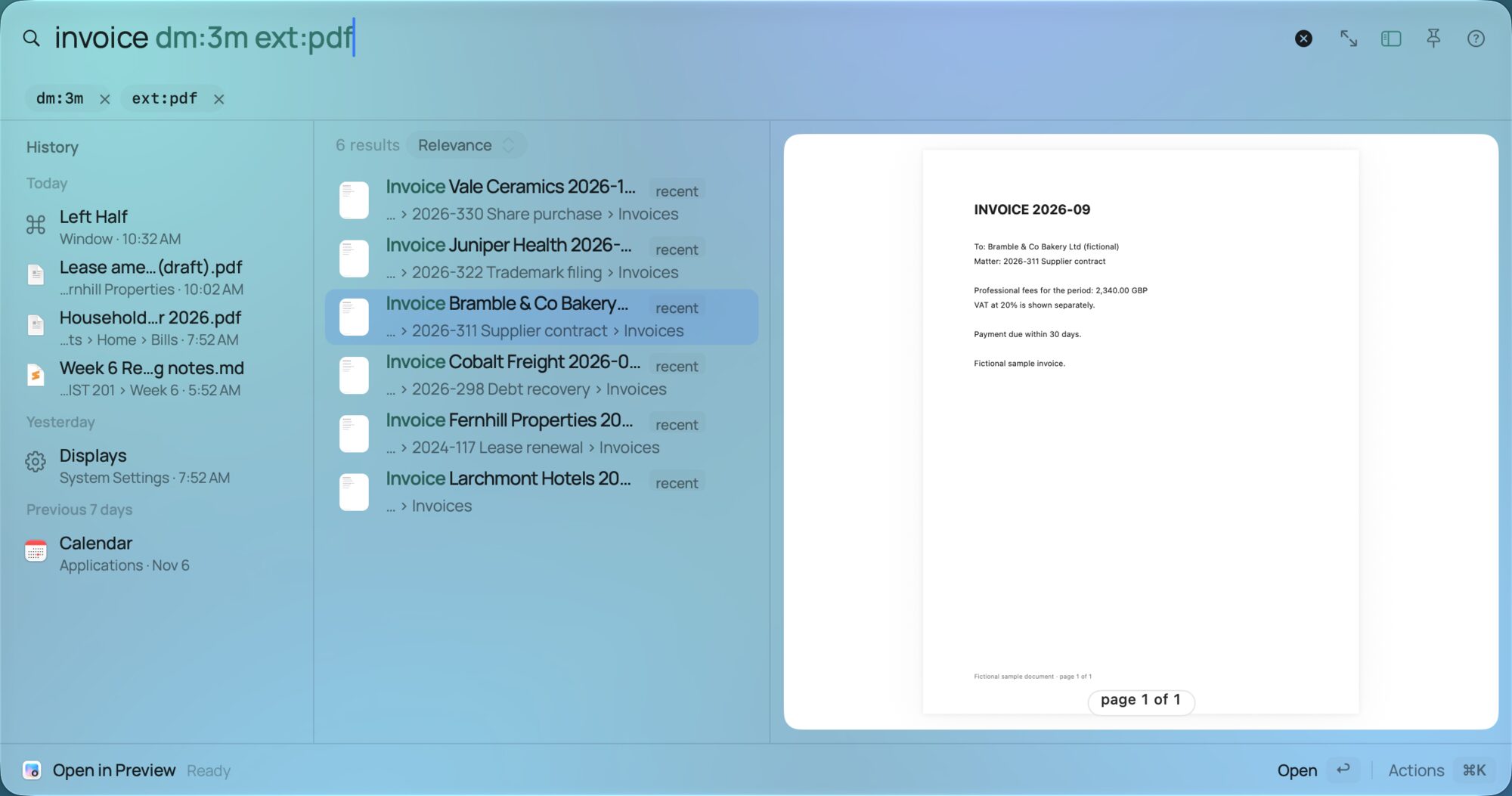
  1. Filter instead of browsing. invoice dm:3m ext:pdf, deck dm:7d, tag:client size:>1mb. Combine words and filters freely.
  2. Reopen yesterday’s work. The history sidebar lists everything you opened through Findit, grouped Today, Yesterday and earlier. One click reopens it.
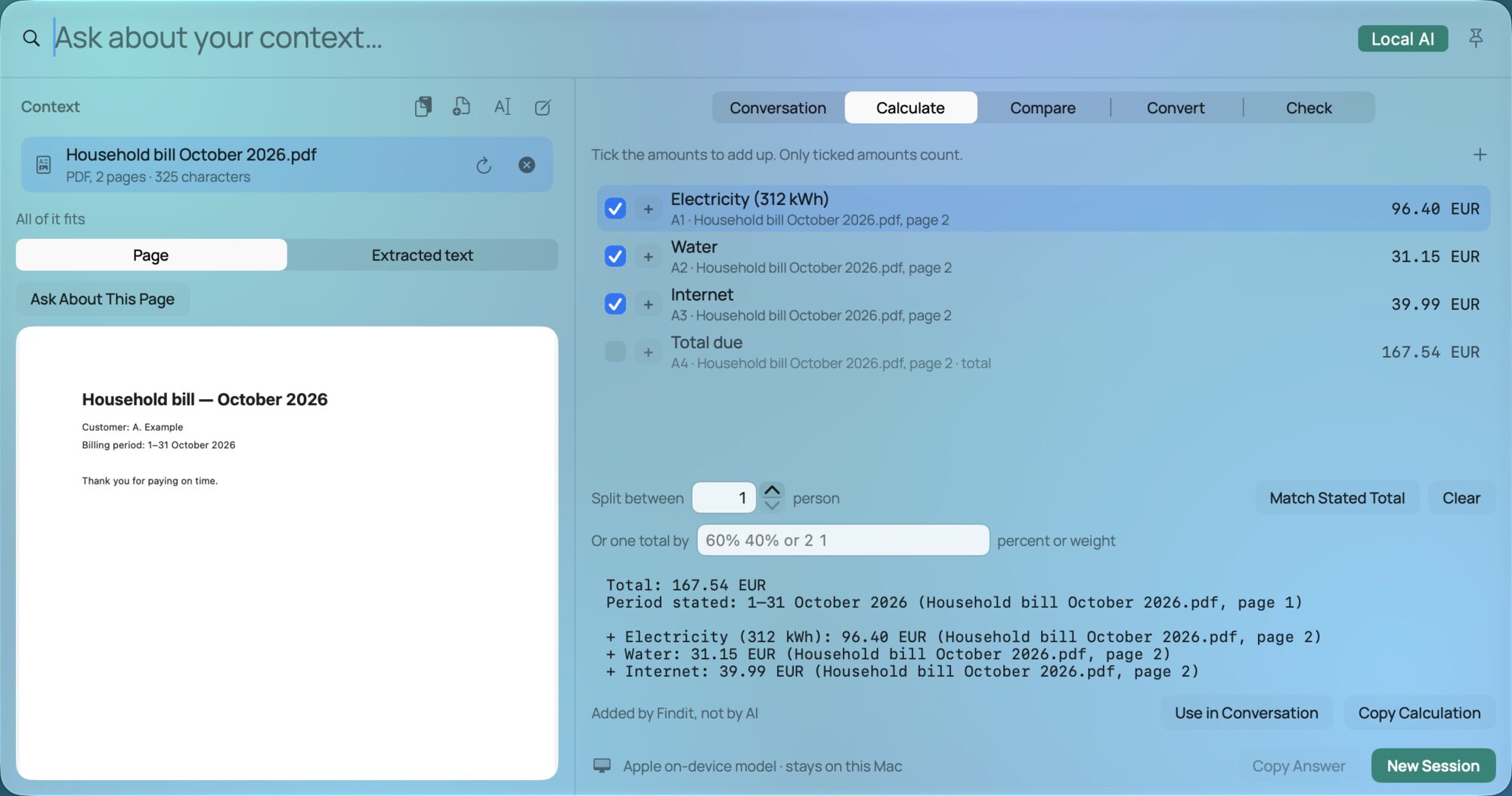
  3. Check the numbers. In Ask Findit, Calculate (⌘2) lists every amount in a PDF with its page, adds the ones you tick with exact decimals, and confirms the stated total.

Also: tag files with real Finder tags (⌘T), arrange windows by typing “left half”, keep reusable text as snippets.

Search results for invoices from the last three months.
Find the invoice. Check the total. “invoice dm:3m ext:pdf” lists this quarter’s invoices; Calculate then adds the amounts you tick. No AI model is needed. Real app, fictional files.

AS A RESEARCHER OR WRITER

You know you wrote it down. Somewhere.

Years of notes, papers and drafts. You remember the idea, not the words, and definitely not the file name.

  1. Search by meaning. Turn on on-device semantic search, then sem:why the uprisings failed finds notes about the idea. Or content:"exact phrase" for the words themselves.
  2. Quote with confidence. Ask a paper a question, then follow the answer’s citations to read the original pages.
  3. Review every edit. Compare two drafts by word, ignoring line breaks, to see each change an editor made.

Content and meaning search cover text, Markdown, CSV, JSON, HTML and code files, plus PDF text layers (up to 500 pages and 2 MiB; scanned pages only if you turn that on) and supported DOCX, ODT, XLSX, PPTX, ODS, ODP and EPUB text with source anchors. RTF, Word 97–2004 and web archives are read with macOS’s importers. Add a PDF or one of these documents to Ask Findit to ask about it.

Ask Findit answering with a page citation and the highlighted passage.
Read the source. Review the edits. An answer that cites page 3, with the cited clause highlighted in the PDF beside it. Real app, fictional document; scripted sample AI answer.

AT HOME

Did the energy bill really go up that much?

Bills, receipts, tax returns and warranty cards, saved as PDFs and phone photos. You want a total, a split, and proof.

  1. Find it. electricity bill dm:1y or tax return. Tag paperwork once, find it forever with tag:tax.
  2. Add it up. Calculate lists each amount with its line on the page. Tick the charges; Findit checks them against the bill’s own total and splits it to the cent.
  3. Read a paper receipt. Paste a photo with ⌘⇧V. Text is recognized on your Mac and the amounts join the worksheet, marked as recognized.

Calculate is Findit’s own exact arithmetic. No AI model is asked, and currencies are never mixed.

Calculate adding the charges from a household bill.
Make sense of the bill. Ticking the charges on a household bill and checking the stated total. Exact arithmetic on your Mac; no model needed. Real app, fictional bill.

AS A DEVELOPER

Every repo, every file, a few keystrokes away.

Ten projects, a hundred config files with the same name, and a JWT someone pasted in chat.

  1. Jump into the right window. repo:. config ext:json, then ⌘↩ opens the file in the VS Code, Cursor or Xcode window for its project.
  2. Edit in place. ⌘E edits text and code right in the preview; ⌘S saves.
  3. Convert locally. Ask Findit’s Convert (⌘4) formats and validates JSON, decodes JWTs, Base64, URLs and timestamps, and turns CSV into Markdown tables.

Plus a findit CLI and MCP tools that read the live index, findit:// links, glob and regex filters, “why ranked” (⌘I), and your own local plugins.

TRY

glob:*.swift dm:7dre:invoice-\d{4} ext:jsonrepo:. kind:dir testfindit --json "auth service"

AS A TEACHER

Years of lessons, at your fingertips.

Worksheets from three schools, five syllabus versions, and a stack of submissions to check against the brief.

  1. Find the lesson. year 9 photosynthesis worksheet finds it wherever it ended up. Filter with tag: or dm:.
  2. Check a submission. Check (⌘5) tests the word limit, required headings and the due date, and leaves judgement to you as Needs review.
  3. See what changed. Compare (⌘3) lists every difference between two versions of a syllabus or policy.

Reuse feedback with snippets: type snip and a name. Snippets can include today’s date.

Findit checking a fictional history essay against its assignment brief: the word count and required headings pass, while a missing References section is flagged.
Check a submission against the assignment brief. Word count and required headings are checked; a missing References section is flagged. Fictional classroom example, shown in the real app. Checks requirements, not academic quality or grades.

FOR YOUR PHOTOS

“Birthday photos from last year.”

Twenty thousand photos in Apple Photos and a few old folders. You remember the occasion and roughly when.

  1. Ask in plain words. Type “find my beach photos from summer 2024”. Findit repeats what it understood (“Beach photos from summer 2024”) before it searches.
  2. Checked on your Mac. Dates come from Photos and the pictures themselves; subjects such as birthday, beach, snow, dog or sunset are confirmed by Apple’s image classifier on your Mac.
  3. Open or reveal. ↩ opens the photo, ⌘R shows it in Finder or Photos.

Apple Photos access is asked for, never assumed. Findit never sends your photos anywhere on its own; a photo goes to Cloud AI only if you add it to Ask and approve that request. Archive drives stay searchable while unplugged if you opt in.

TRY

photos birthday 2025photos snow last winterphotos screenshots this monthis:offline on:Archive ext:nef,cr3

Also built for keyboard and VoiceOver users (every action has a key, results and outcomes are announced) and job seekers (check a cover letter against the advert’s limits and closing date).

GO A LITTLE DEEPER

More of your Mac.
Still one panel.

Every capability below ships today. Optional features stay off until you turn them on.

Search inside files, or by meaning Optional

Turn on content indexing for content:budget and jump to matching lines. Turn on on-device semantic search for sem:the garden plan. Text indexing reads a prefix of up to 2 MiB per file, including larger text files. The PDF helper reads a text layer from up to 500 pages and 2 MiB; reading scanned pages on your Mac while indexing is optional, and that text is marked unverified. Semantic search uses on-device chunks. PDF and supported Office/EPUB/OpenDocument text use bounded extraction, source anchors and coverage notices; inspected source revisions guard exact-copy operations.

Ask about PDFs, scans and screenshots

Ask Findit reads PDFs page by page (up to 500 pages) and cites the page. Pages without a text layer and images are read with Apple’s text recognition on your Mac (up to 50 scanned pages per document), and recognized text is always marked as such.

A search that understands your context

Recent use and your active project help rank results. Filter by Git repository, choose a sort order, see “why ranked” with ⌘I, and save named folder scopes such as in:@work. Glob and regex filters are there for precise patterns.

Photos by date and subject Permission asked

Plain-word questions such as “birthday photos from last year”, or photos mode. Searches Apple Photos (after you allow it) and image folders, newest first, with thumbnails. Subjects are confirmed on your Mac by Apple’s Vision classifier; the status says how many photos were checked.

Cloud files and disconnected disks Opt-in retention

See iCloud placeholders without downloading them. Keep a searchable list of an opted-in external disk while it’s unplugged; results tell you to reconnect before opening.

Apps, settings, windows and quick answers

Launch apps, jump to System Settings panes, calculate as you type, run system actions, arrange windows (“left half”) or switch windows with win. Window actions need Accessibility permission.

Clipboard history and snippets Optional

Keep a local clipboard history (clip), pin useful entries, and insert saved text with snip, including today’s date or the clipboard. Stored text stays on your Mac.

For the terminal and your own workflows

A read-only findit CLI with JSON output and shell helpers, and MCP tools for agents, both reading the running app’s live index over a socket only your user can open. The findit:// URL scheme, Find Files and Transform Text actions in Shortcuts (macOS 15 and later), and optional local plugins that run your own scripts on selected files, with each permission approved by you.

Workbench: Home, tools and a feature directory

Type home or workbench. Home cards, workspaces, feeds, weather, timers, world clocks, study workflows, work packs, developer helpers and a searchable directory that says what each feature does, what it needs and how to try it. Nothing connects just because Workbench opens.

Exact values and Protected Shelf Authentication

Find a labelled IBAN, routing number, VIN, ISBN, DOI or due date in your documents with its file and position, no model involved; checksums are verified where the format has one. Keep bank details, addresses, passports, Wi‑Fi passwords, recovery codes and TOTP in the Shelf, which asks you to authenticate before each read. Concealed copies restore your previous clipboard, and clipboard history masks one-time codes.

Duplicates, batch convert and Time Travel

Find duplicates by content and review moves to the Trash with a put-back list. Convert images with a dry-run preview of every output. Time Travel lists local snapshots and searches Time Machine backups macOS has mounted (Full Disk Access needed), copying a file out without touching the backup.

Your folders, file types and exclusions

Choose folders, disks and file types. Hidden files are opt-in. Use .finditignore files and exclusions to keep noisy or private folders out. Full Disk Access is optional.

A native Mac experience

Menu-bar app, configurable global shortcut, light and dark appearance, launch at login, Quick Look, full keyboard navigation, VoiceOver labels and announcements, and Reduce Motion support. No browser wrapper.
Try it with your own files.

Free · Apple silicon · macOS 13+ · Version 2.0.0

Download Findit ↓Local AI requirements ↗